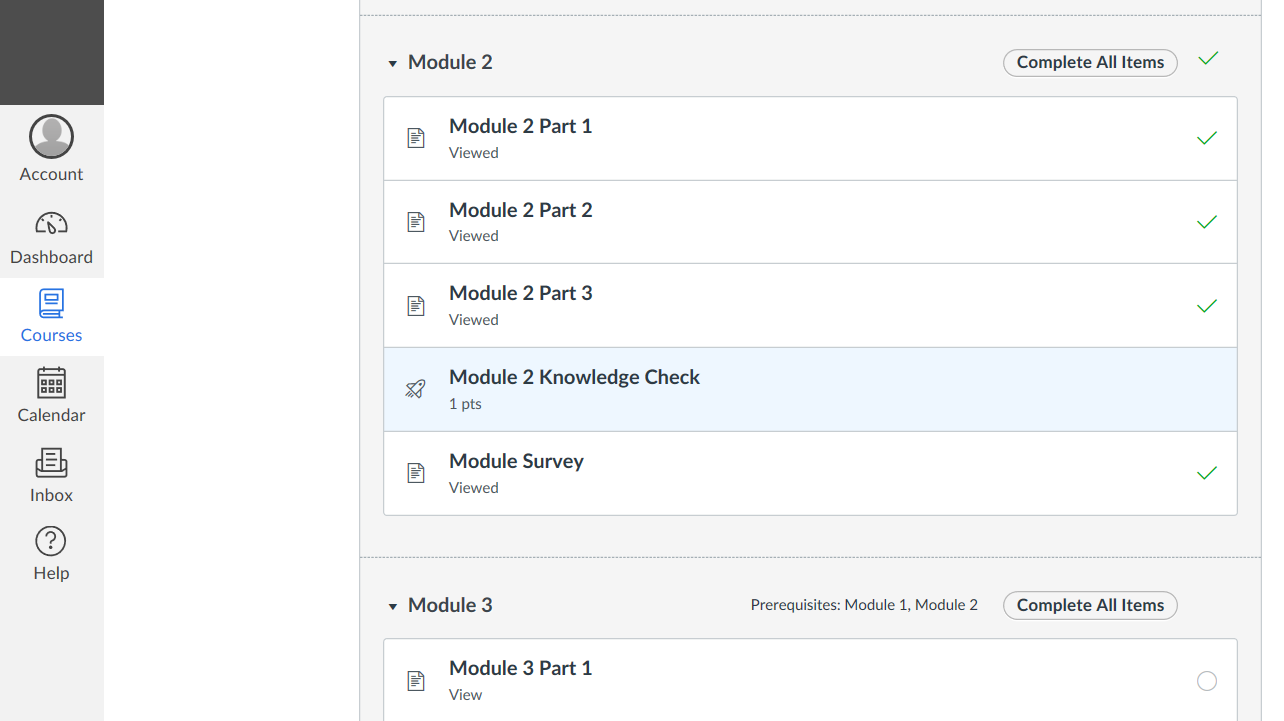
The following article describes the ability to integrate the EvaluationKIT survey notification into asynchronous Self Paced courses inside of Canvas.
This feature enables the EvaluationKIT survey notifications to fire at the Pages level inside of a Canvas course.
This ability can be used in conjunction with modules configured with prerequisites to develop an integrated evaluation inside of Canvas to fire the survey notification on a specific Page.
NOTE
Please reach out to eksupport@watermarkinsights.com for assistance in your initial set up of this feature. Working in both EvaluationKIT and Canvas is required for the successful deployment of this functionality.CONFIGURING THE SELF PACED SURVEY NOTIFICATION FOR CANVAS:
- In a fully enabled Canvas integration account go to Project > Project Properties > Student Survey Notification Settings > Select Enable Student Survey Notification Settings > Save.

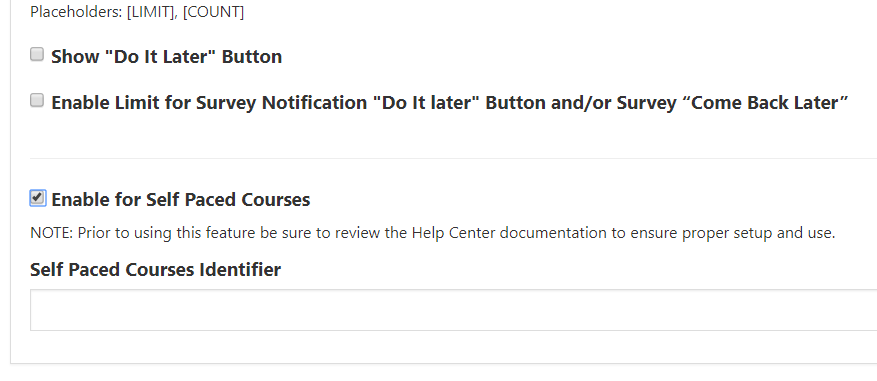
- After saving a new option will be available, go to Project > Project Properties > Student Survey Notification Settings > Select Enable for Self Paced Courses
NOTE
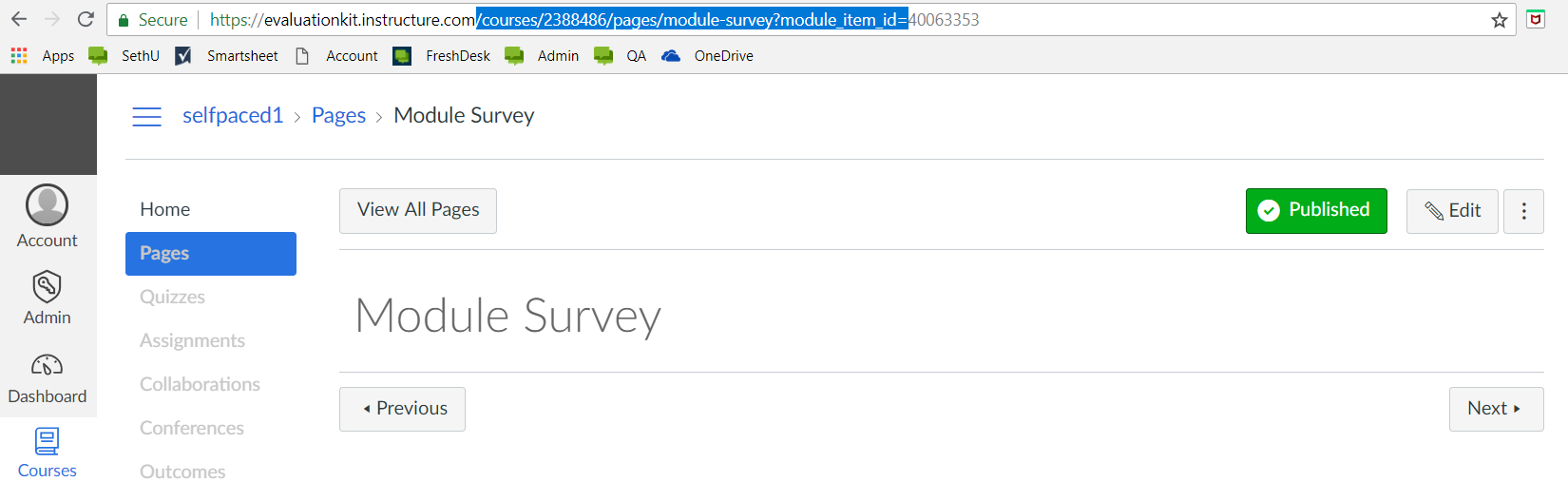
DO NOT select Show Do it Later button. Selecting this option will cause the survey notification to NOT fire at the Page level. - Navigate to the Canvas Course to be enabled with Pages level survey notifications. Select Page to be enabled with the survey notification. Highlight and copy the portion of the URL seen below: ex. /courses/2388486/pages/module-survey?module_item_id=.
NOTE
The Self Paced Feature can only be enabled for one naming convention for the Page to be enabled with the survey notification. The Page can be named to a title of your choosing (ex. Module Survey, Course Evaluation) but the title must be reused for each intended instance for the survey notification. -
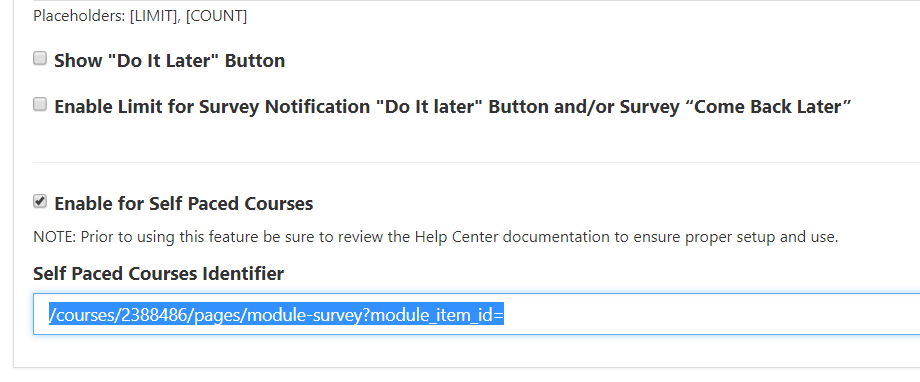
Project > Project Properties > Student Survey Notification Settings > Self Paced Courses Identifier > Paste highlighted portion of URL > Save.
-
Test feature > Deploy Survey > Login to Canvas Course as student, select survey enabled Page in Canvas > Receive Survey Notification.
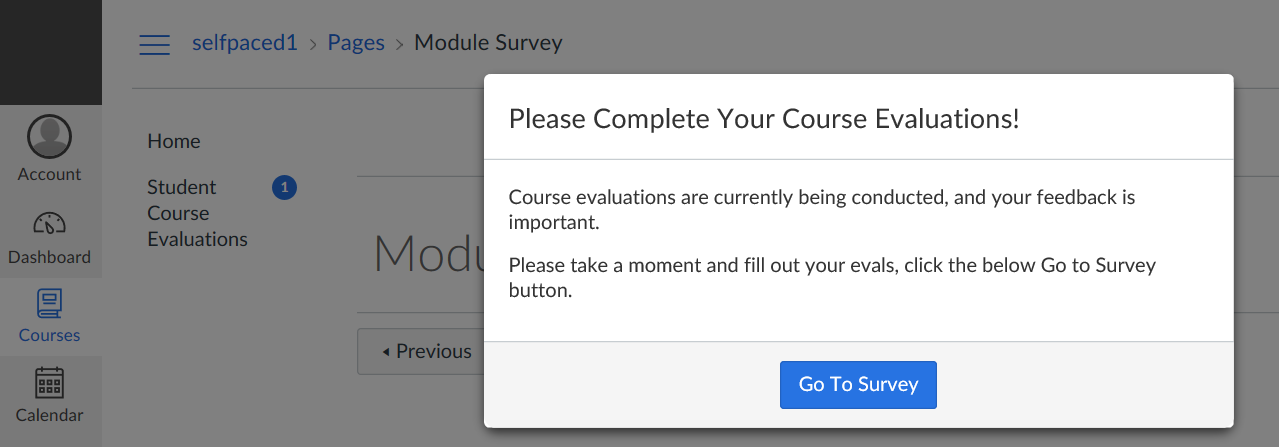
EXAMPLE SELF PACED STUDENT WORK FLOW:
After following the steps above the feature will be enabled. The following is an example student work flow to illustrate how a user interacts with the Enable Self Paced Survey Notification inside of Canvas.Note: This is only intended as a view into the workflow for the EvaluationKIT Pages survey notification, not as a guide for how to setup Canvas.
- Student accesses a course containing modules configured with prerequisites.
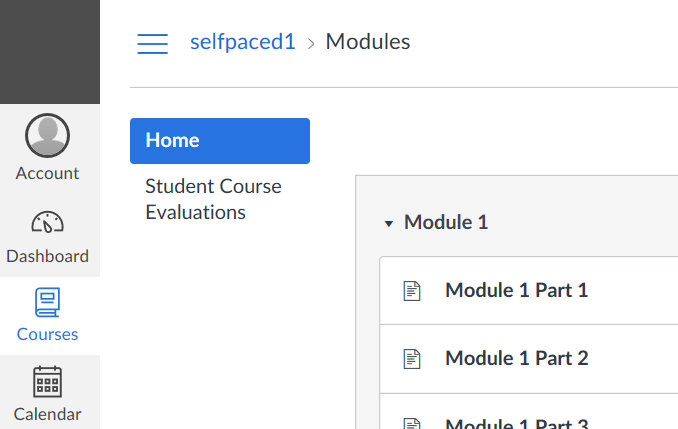
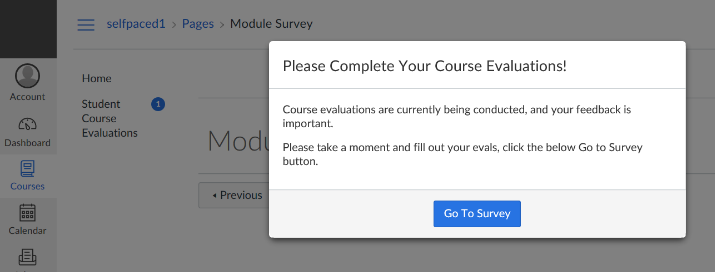
- Student completes all components of module to open up access to Page tied to survey > Student selects Page enabled with survey notification.
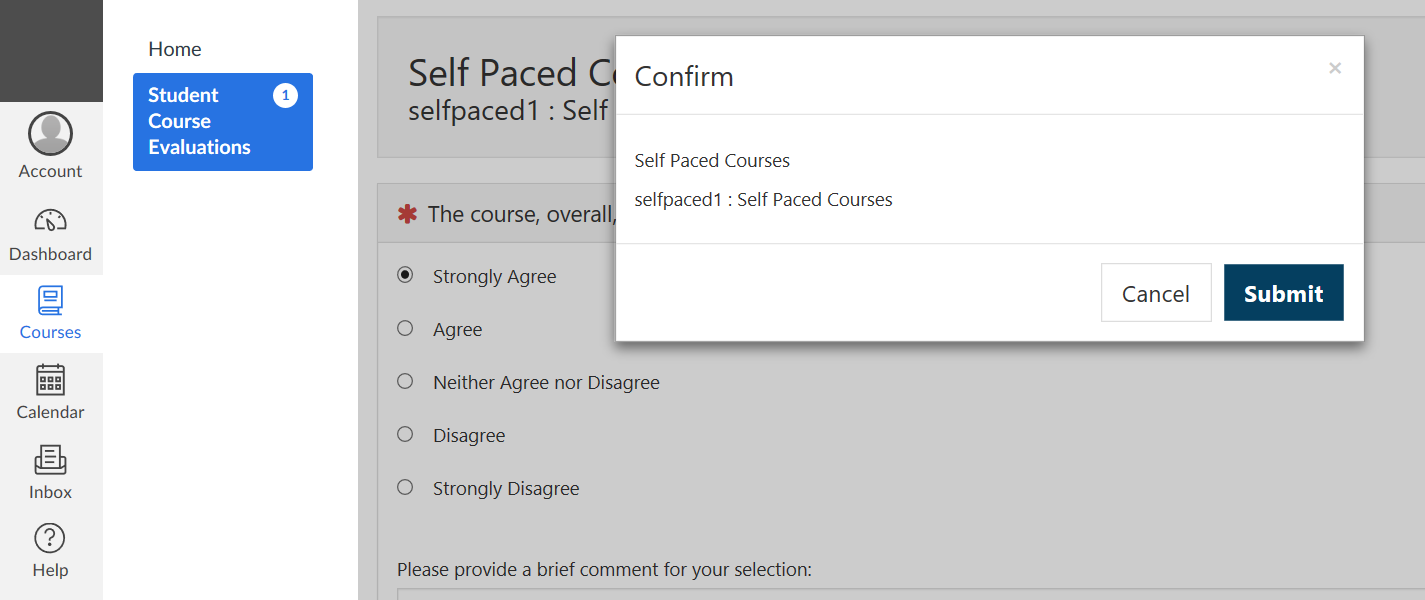
- Student is taken to survey > Completes survey > Submits survey.
- Student is taken to EvaluationKIT Dashboard inside of Canvas.
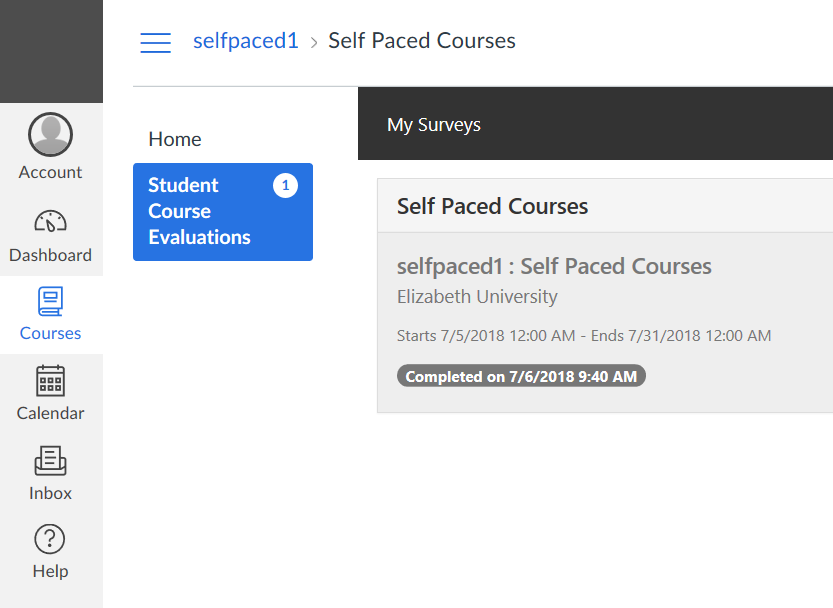
- Student navigates back to course home > Continues engagement with course material.