Any LMS system that supports LTI can use EvaluationKIT as an LTI Service Provide (LTI SP) and authenticate users in EvaluationKIT, if matching usernames exist in EvaluationKIT.
Sakai And Generic LTI Integration Steps
- If LTI is not currently enabled for your EvaluationKIT Account (check Account > Integrations > LTI), send a request to eksupport@watermarkinsights.com to enable LTI for your account in EvaluationKIT.
- Login to your account in EvaluationKIT and click on Account > Integrations > LTI.
- The LTI integration requires Consumer Key, Shared Secret Key and the URL (#1 in the image below). Version 1.0 just indicates that EvaluationKIT supports LTI 1.0. Use this information to configure the LTI in the 3rd party (e.g. LMS) system.
- The LTI sends user info, including usernames, in the requests. You will need to identify what parameter carries username.
Examples:
Once you identify the username parameter name, you will then add that to "Username Parameter Name" in the EvaluationKIT LTI settings page (#2 in the image below) and save.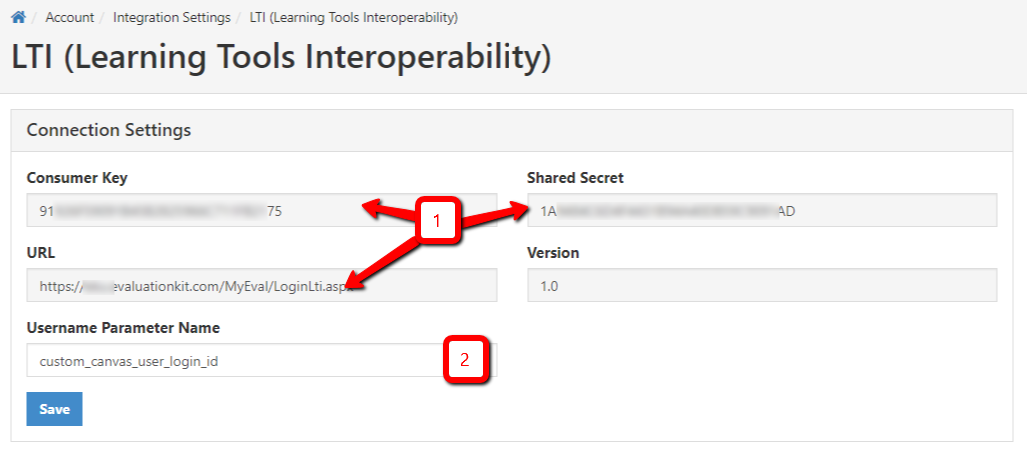
These directions are for the the user integration only, and provides a static link to EvaluationKIT.
NOTE
If you are also using the Instructure Canvas LMS, changing the Username Parameter Name would affect the Canvas LMS integration. This change will NOT affect other LMS integrations.LTI 1.3 Integration Steps
- Login to your account in Course Evaluations & Surveys and click on Account > Integrations > LTI 1.3.
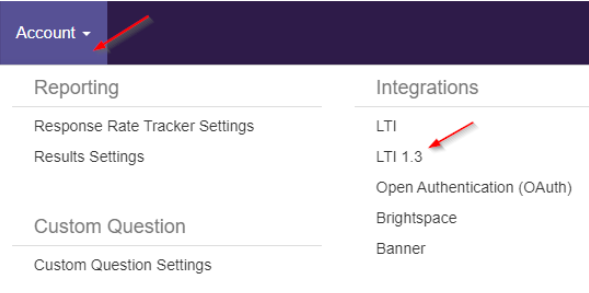
- The LTI 1.3 integration requires Issuer, Client ID, Deployment ID, Public Keyset URL, Authentication Request URL. Use this information to configure the LTI in the 3rd party (e.g. LMS) system.
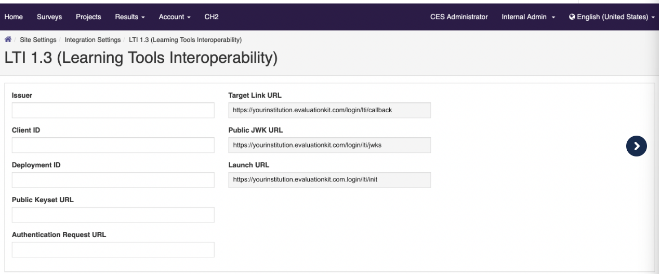
These directions are for the the user integration only, and provides a static link to Course Evaluations & Surveys.