EvaluationKIT offers a variety of integration features for Blackboard Learn customers that can both streamline your operational process and provide easy access for users within Blackboard, which together can facilitate your course evaluation and survey process. This article provides instructions on how to set up the EvaluationKIT Data Integration.
INSTALLATION AND SETUP INSTRUCTIONS FOR DATA INTEGRATION FEATURES
EvaluationKIT Integration Setup in Blackboard
As a Blackboard Administrator, log in to your instance of Blackboard and complete the following:- Create a designated Blackboard Administrator, which will be associated to the integration. Below are the minimum permissions needed for a custom admin system role for Data Integration to work:
- Navigate to System Admin > Integrations (section) > REST API Integrations.
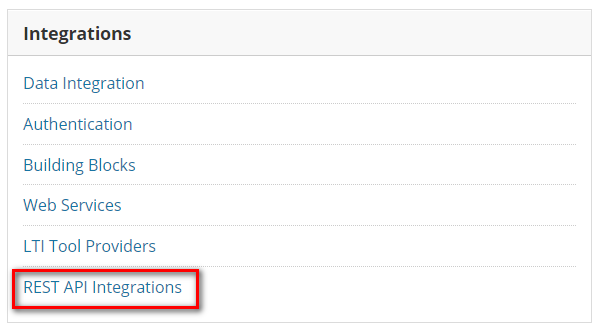
- Select Create Integration.

- Click Submit.
- Name the integration (I.e. EvaluationKIT).
- Click Submit.
EvaluationKIT Integration Setup in EvaluationKIT
Next, log in to your EvaluationKIT Account as the EvaluationKIT Administrator and go to Account > Integrations (section) > Blackboard > Data Integration (tab) to configure the Connection Settings: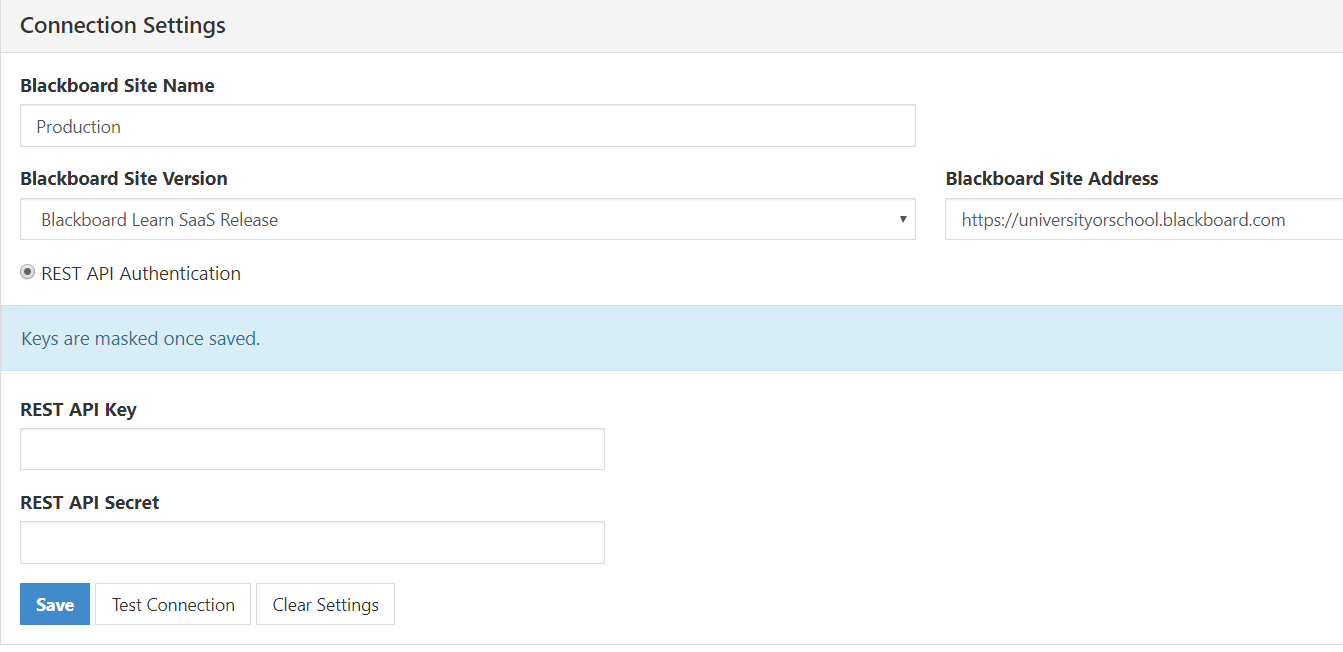
- Blackboard Site Name: This is any name you want to assign to your instance of Bb Learn to identify it (e.g., Bb Learn Production or Bb Learn QA).
- Blackboard Site Version: Select the correct version from the dropdown.
- Blackboard Site Address: Enter the URL for your instance of Blackboard.
- REST API Authentication: Will be selected by default.
- REST API Key: Contact eksupport@watermarkinsights.com to configure and enable this part of the integration.
- REST API Secret: Contact eksupport@watermarkinsights.com to configure and enable this part of the integration.
- Click Save.
- Click Test Connection: You should receive a Test Passed message at the bottom of the screen, if all is configured properly. If you receive a Test Failed message, review your configuration steps above and if you are unable to resolve, contact eksupport@watermarkinsights.com.